


Siri is Apple’s built-in voice assistant, available across iPhone, iPad, Mac, and Apple Watch. Mastering Siri commands lets users make calls, send messages, control smart home devices, manage calendars, and more—entirely hands-free. This guide covers the most useful Siri commands by category to help iPhone users work faster and smarter.
Most iPhone users have asked Siri what the weather is like or told it to set a timer. That’s about as far as it goes for a lot of people. But that’s barely scratching the surface of what Apple’s voice assistant can do.
Siri launched in 2011 as a simple voice-activated assistant on the iPhone 4S. Since then, Apple has transformed Siri into a deeply integrated AI assistant capable of controlling your home, managing your health data, navigating traffic, and automating repetitive tasks across every Apple device you own. With iOS 17 and beyond, Siri has become faster, more context-aware, and more capable of chaining complex commands together.
The real question isn’t whether Siri can help you—it’s whether you know how to ask. Research consistently shows that voice control can reduce task completion time significantly compared to manual navigation through menus and apps. For anyone juggling a busy schedule, that time adds up fast.
This guide covers everything from basic setup to advanced Siri voice shortcuts, organized by use case so you can find exactly what you need. Whether you’re commuting, cooking, or powering through a workday, there’s a Siri command here that will make your life easier.
How Do You Set Up and Activate Siri on iPhone?
Getting started with Siri takes less than two minutes. On iPhone, go to Settings > Siri & Search and toggle on “Listen for ‘Hey Siri’” or “Press Side Button for Siri.” On iPad, the setup is identical. On Mac, navigate to System Settings > Siri & Spotlight.
During setup, Apple prompts you to complete a short voice recognition exercise. This calibrates Siri to your specific voice, improving accuracy over time.
Personalization options worth enabling:
- Set your preferred language and accent under Siri’s Language settings
- Enable “Always On Display” activation for hands-free use
- Add your personal details (name, home address, work address) via the Contacts app—Siri uses this to give more relevant responses
A note on privacy: Siri processes most requests on-device, meaning your voice data doesn’t always travel to Apple’s servers. However, for requests that require web search or third-party app integration, data is transmitted. You can review and delete your Siri history at any time via Settings > Siri & Search > Siri & Dictation History.
What Are the Best Siri Commands for Calls, Messages, and Email?
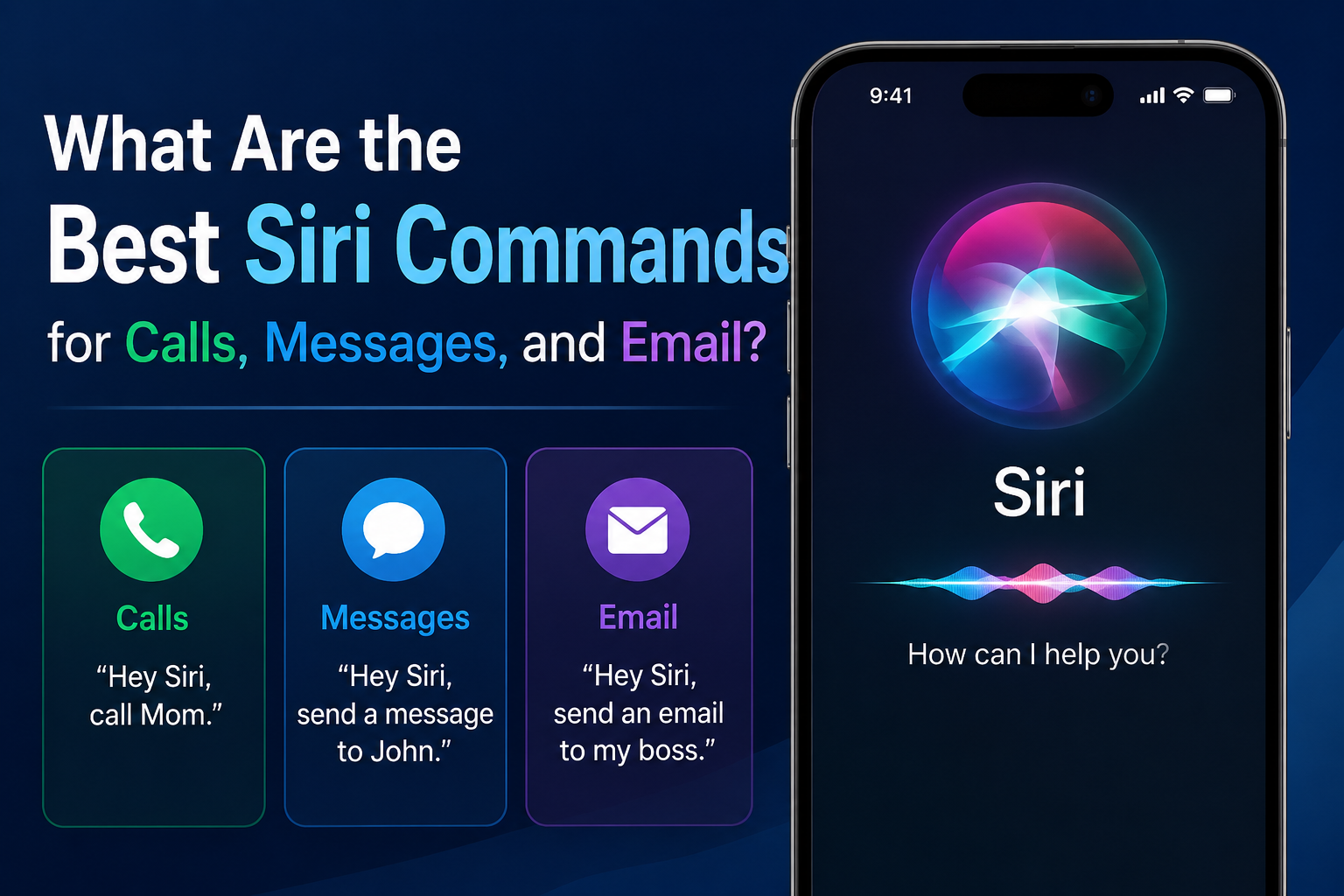
Communication is where Siri consistently delivers. These hands-free commands are especially useful while driving, cooking, or when your hands are occupied.
Calling and messaging:
- “Hey Siri, call Mom.”
- “Send a message to David saying I’ll be five minutes late.”
- “Read my last text message.”
- “Reply with ‘On my way.'”
- “FaceTime Sarah.”
Reminders and to-do lists:
- “Remind me to take my medication at 8 PM every day.”
- “Add milk to my grocery list.”
- “Remind me about this when I get home.” (location-based reminders)
Calendar and scheduling:
- “Schedule a meeting with the marketing team tomorrow at 2 PM.”
- “What’s on my calendar this Friday?”
- “Move my 3 PM appointment to 4 PM.”
Email without typing:
- “Email James the quarterly report is ready.”
- “Check my unread emails.”
- “Reply to the last email from Sarah.”
How Can Siri Help with Navigation and Travel?
Siri integrates directly with Apple Maps—and Google Maps, if you’ve set it as your default—to provide real-time directions, traffic updates, and local search results.
Directions and traffic:
- “Give me directions to the nearest gas station.”
- “How’s traffic on my way to work?”
- “What’s the fastest route to LAX right now?”
Finding nearby places:
- “Find Italian restaurants near me.”
- “Where’s the closest pharmacy that’s open right now?”
- “Show me highly-rated coffee shops nearby.”
ETA and travel reminders:
- “Tell my wife I’ll be home at 7.” (Siri will send a message automatically)
- “Remind me to leave for the airport at 4 PM.”
Public transportation:
- “How do I get to Grand Central Station by subway?”
- “What’s the next bus to downtown?”
What Siri Commands Work Best for Smart Home Control?
If you use HomeKit-compatible devices, Siri becomes a powerful home automation hub. Apple HomeKit supports hundreds of devices from brands including Philips Hue, Eco bee, and August.
Lighting and climate:
- “Turn off the living room lights.”
- “Set the thermostat to 72 degrees.”
- “Dim the bedroom lights to 40%.”
Music and podcasts:
- “Play my Workout playlist on the kitchen speaker.”
- “Play the latest episode of The Daily.”
- “Skip this song.”
HomeKit scenes and automation:
- “Hey Siri, goodnight.” (triggers a preset scene that locks doors, dims lights, and adjusts temperature)
- “Turn on Movie Mode.”
- “Is the front door locked?”
Scenes are created in the Home app on iPhone and allow you to trigger multiple device actions with a single command. This is one of the most underused smart home features available to iPhone users.
How Do You Use Siri for Productivity and Quick Information Lookups?
Siri handles a wide range of information requests quickly, saving you the time it takes to open a browser or app.
Weather, news, and sports:
- “What’s the weather in Chicago this weekend?”
- “Give me today’s top news headlines.”
- “What was the score of last night’s Lakers game?”
Math and conversions:
- “What’s 15% of $84?”
- “Convert 500 euros to US dollars.”
- “How many ounces are in a liter?”
Definitions and general knowledge:
- “What does ‘ephemeral’ mean?”
- “Who wrote ‘To Kill a Mockingbird’?”
- “How far is the moon from Earth?”
Launching apps:
- “Open Spotify.”
- “Launch my banking app.”
- “Search for pasta recipes in Safari.”
Can Siri Track Your Health and Fitness Data?
Siri connects directly to the Apple Health app, giving you voice access to your fitness and wellness data without opening the app manually.
Workouts and activity:
- “Start a 30-minute outdoor run.”
- “End my workout.”
- “How many steps have I taken today?”
Health reminders:
- “Remind me to drink water every two hours.”
- “Remind me to stand up at 10 AM.”
Health data queries:
- “What was my heart rate during my last workout?”
- “How did I sleep last night?”
- “How many calories have I burned today?”
Note: Siri’s access to health data requires that Apple Health permissions are enabled. Check Settings > Privacy & Security > Health to confirm which apps and features can access your data.
What Are the Most Powerful Advanced Siri Features?
This is where Siri goes from convenient to genuinely transformative—especially for users who want to automate repetitive tasks.
Siri Shortcuts: Apple’s Shortcuts app lets you create custom voice commands that trigger multi-step automations. For example, saying “Hey Siri, start my morning” could simultaneously turn on your kitchen lights, read your calendar, start a coffee playlist, and display today’s weather. Shortcuts are created in the Shortcuts app and assigned a custom phrase.
Third-party app integration: Siri works with many third-party apps, including Spotify, WhatsApp, Uber, and Todoist. To enable these, go to Settings > Siri & Search, find the app, and toggle on Siri integration.
Chaining commands: Siri increasingly supports multi-step requests. For example: “Send James a message saying I’m running late and then set a reminder to call him back at 5 PM.”
Cross-device control: With Apple’s ecosystem, you can use Siri on your iPhone to control your Mac, Apple TV, or Home Pod. Handoff features and Air Play commands like “Play this on my living room TV” make the Apple ecosystem genuinely powerful.
Why Isn’t Siri Recognizing My Voice Commands—And How Do I Fix It?
Even with strong setup, Siri sometimes misinterprets commands. Here’s how to diagnose and fix the most common issues.
Siri isn’t responding to “Hey Siri”:
- Confirm “Listen for ‘Hey Siri'” is enabled under Settings > Siri & Search
- Re-run the voice recognition setup to recalibrate
Siri is mishearing your commands:
- Speak clearly and avoid background noise when possible
- Reduce ambient sound by moving closer to your device
- Rephrase commands more simply—Siri responds better to direct requests than conversational phrasing
Siri isn’t accessing the right app or data:
- Check app permissions under Settings > Siri & Search > [App Name]
- Ensure the app supports Siri integration (not all apps do)
Privacy settings limiting Siri’s functionality:
- Some restrictions under Screen Time can block Siri features. Go to Settings > Screen Time > Content & Privacy Restrictions to check
Improving voice recognition over time: Siri learns from your usage patterns, but only if you use it consistently. The more you use Siri for a specific type of command, the more accurate it becomes.
Make Every Siri Command Count
Siri is one of the most capable voice assistants on the market—and one of the most underutilized. Most iPhone users never move beyond timers and weather checks. But as this guide shows, Siri can manage your entire day: from your morning workout and commute, through back-to-back meetings, to locking your house and setting your evening playlist.
The best way to build a Siri habit is to start with one category that matches your daily pain points. If you’re always late to meetings, focus on the calendar and navigation commands. If smart home control is the appeal, start with HomeKit scenes. Once those commands become second nature, branch out.
The future of Siri looks ambitious. Apple’s ongoing investment in on-device AI processing—most recently highlighted with Apple Intelligence features introduced in iOS 18—signals that Siri’s capabilities will continue expanding, particularly in personalized context awareness and proactive suggestions.
The most productive iPhone users don’t just own a powerful device. They know how to talk to it.
Frequently Asked Questions About Siri Commands
What are the most useful Siri commands for everyday use?
The most practical Siri commands for daily use include setting reminders (“Remind me to call the dentist tomorrow at 10 AM”), sending messages (“Send a text to Mom saying I’ll be home by 7”), navigating (“Give me directions to the nearest grocery store”), and launching apps (“Open Spotify”). These commands reduce screen time and speed up routine tasks significantly.
How do I make Siri understand me better?
To improve Siri’s voice recognition accuracy, re-run the “Hey Siri” voice setup under Settings > Siri & Search, speak clearly and reduce background noise, and use Siri regularly so it can learn your speech patterns over time. Rephrasing commands in simpler, more direct language also improves results.
Can Siri control third-party apps like Spotify or WhatsApp?
Yes. Siri supports many third-party apps, including Spotify, WhatsApp, Uber, Todoist, and more. To enable third-party app access, go to Settings > Siri & Search, find the relevant app, and turn on the “Use with Siri” toggle. Not all apps support Siri integration, so availability varies.
Is Siri always listening to my conversations?
Siri only activates when it detects the “Hey Siri” wake phrase or when you press the Side Button. Apple processes most Siri requests on-device to protect privacy. For requests requiring internet connectivity, some data is sent to Apple’s servers. Users can delete their Siri history at any time via Settings > Siri & Search > Siri & Dictation History.
What are Siri Shortcuts and how do I create them?
Siri Shortcuts are custom voice commands that trigger multi-step automations on iPhone. They are created in the Shortcuts app (pre-installed on iOS). After building a workflow in the app, you assign it a custom phrase. For example, saying “Hey Siri, heading out” could send your ETA to a contact, start navigation, and play your driving playlist simultaneously.
Does Siri work without an internet connection?
Siri can handle some tasks offline, including setting timers, opening apps, and adjusting device settings. However, tasks that require web searches, real-time information (like weather or traffic), or third-party app integration require an active internet connection.
How do I use Siri to control my smart home?
Siri controls HomeKit-compatible smart home devices via voice command. To set it up, add your devices to the Apple Home app, then use commands like “Turn off the bedroom lights” or “Set the thermostat to 68 degrees.” You can also create multi-device scenes in the Home app and activate them with a single Siri command.